
Retro Gaming with Cross-Device Saving
Or, how I stopped worrying by learning multiple apps and network share methods
I play a lot of retro games. Being a 90s kid, I have a lot of nostalgia for the Sega Master System, every Nintendo handheld after the OG Game Boy, the PS1 and PS2 and the GameCube. So, being an adult interested in tech, I've built a large collection of consoles and games. Being married and with a kid, I've had to reduce that amount of physical material, so I have distilled it into a large collection of backed up games and a healthy selection of consoles and emulation machines to play them on.
Between my Pi 4 powered RetroPie console, my 3DS, my Wii and my phone, I have plenty of options for what to play and how to play it. Some platforms, particularly the Nintendo ones, work best where they are. Dual-screen emulation of DS and 3DS is... annoying on whatever platform, so I just use my 3DS for those. I'm not going to be trying to play Skyward Sword on my phone either, so the Wii on my TV is the best place for that. Otherwise, I've got a great selection of Game Boy Advance and PlayStation games and romhacks that I like to play on my commute or in the evening laid back on the TV.
But it's 2025. I've soft-modded my 3DS and my Wii, cross-saving on modern consoles is a thing and I want to play the same save file for The Legend of Zelda: Minish Cap on the train and at home. So... how do I do it?
RetroArch and emulators
For those who don't know, RetroArch isn't itself an emulator, but it is a collection of emulators bundled into a single interface. In fact, many consoles have multiple options for emulators you can use, called Cores.
Using GBA as an example, it has several cores. Each one handles saving and, in particular, savestates, differently. Saves files are created when you use the game's save system and are generally (but not always) interchangeable between cores.
Save states, however, are products of the emulator core itself, allowing you to save the current state of the game (hence the name) regardless of if the game has a save function of not. This is extremely useful if you're playing on the go and can't just stay on your bus until you reach a save point. Each core uses it's own unique save state format, so if you're playing the same game on multiple devices you need to use the same emulator. I use mGBA, an excellent GBA emulator, on my RetroPie, PC and phone.
Configuring RetroArch
RetroArch is wonderfully configurable, giving you options to remap controls and change file save directories. As such, I've had to make some configuration changes, notably:
Set unique folders for saves and saves states outside of the ROMS folder
Automatically create a save state when quitting. This is a godsend when your kid suddenly wakes up in the middle of the night and needs you.
Automatically load the last save state when loading the game. This makes it extremely easy to pick up and play.
Moved the Media folder out of the ROMS folder. I don't need to sync manuals and images for every game on a platform.
Turn off the touch controls on my phone when I plug in a controller. Great for when I plug my phone into the Gamesir!
I also modified an input overlay to best suit many of my games, like below.

For this overlay, I've added a quit button and save state button for easy access.
The Retro Game Server
I have a Raspberry Pi 4-powered NAS, and it is, quite simply, awesome. With some hard drives plugged in, I can now reminisce with home movies of awkward school productions on a whim with my Jellyfin server hosting my digitised VHS cassettes.
Unlike my Windows desktop, my Pi 4 powered NAS takes so little power that I'm happy to leave it always on. This makes it the ideal central repository so I moved all my game backups from my PC to my NAS.
Below is a map of my devices and how I sync them.
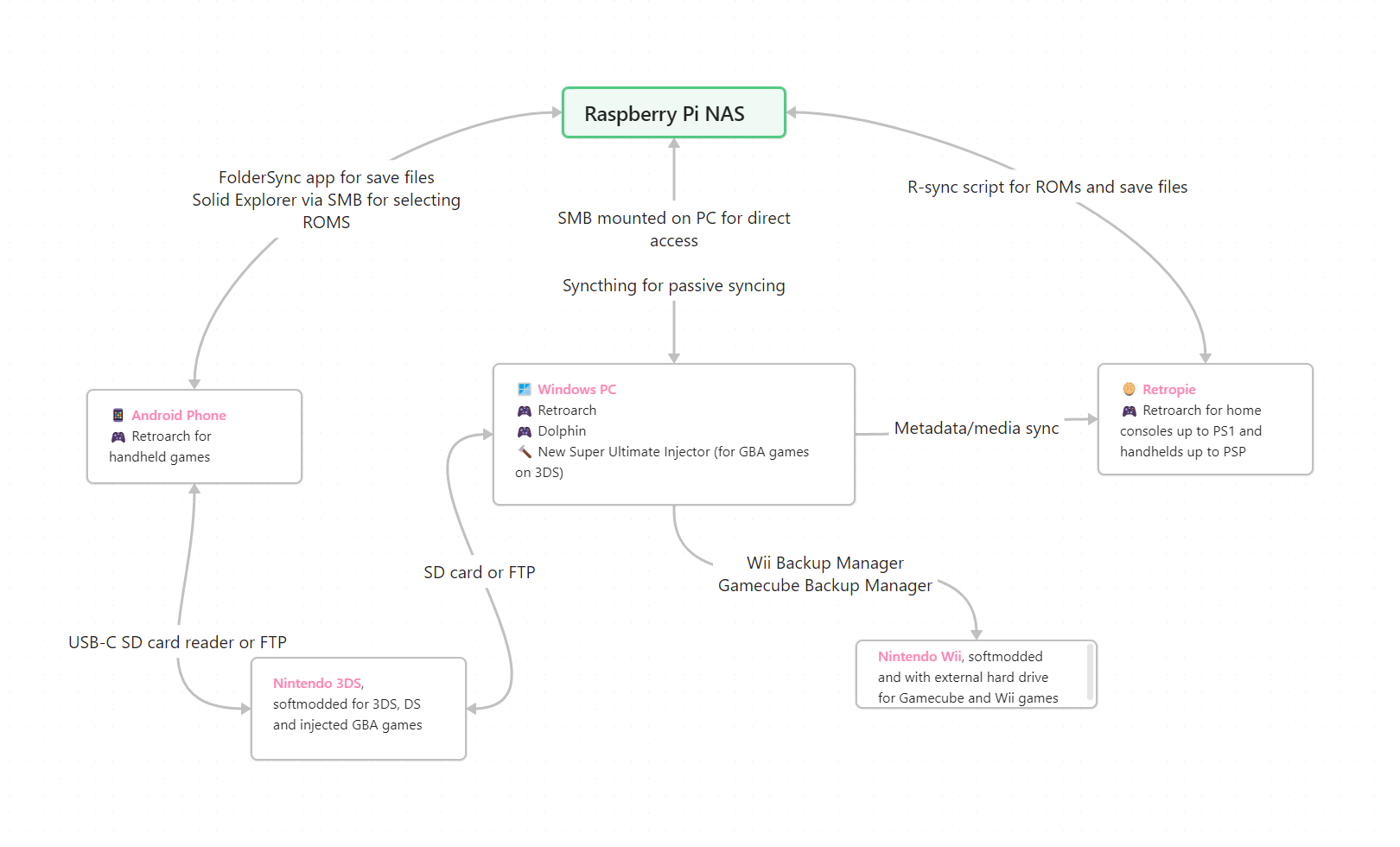
As you can see it is a mess, but it's a functional mess. Depending on the device, I've been using a mix of SMB and FTP sharing to connect devices and using Filezilla or file explorers to move files across, though I am experimenting with switching to Syncthing.
Let's break these methods down.
Automatic Syncing
SMB Folder Sharing
The "RetroGames" folder on the NAS is shared via SMB and FTP. This SMB drive is mapped to my Windows PC and my Android phone (via Solid Explorer). This means on either device I can go in and change anything I need to. Upload, download, delete, edit. This is for manual changes I need to make, not the passive syncing I am aiming for.
SyncFolder and FolderSync
Two similarly named apps that do similar things but for different devices. SyncFolder has been doing the behind-the-scenes backup for my PC and NAS, syncing saves, savestates, and ROMs when the PC powers on and changes were made.
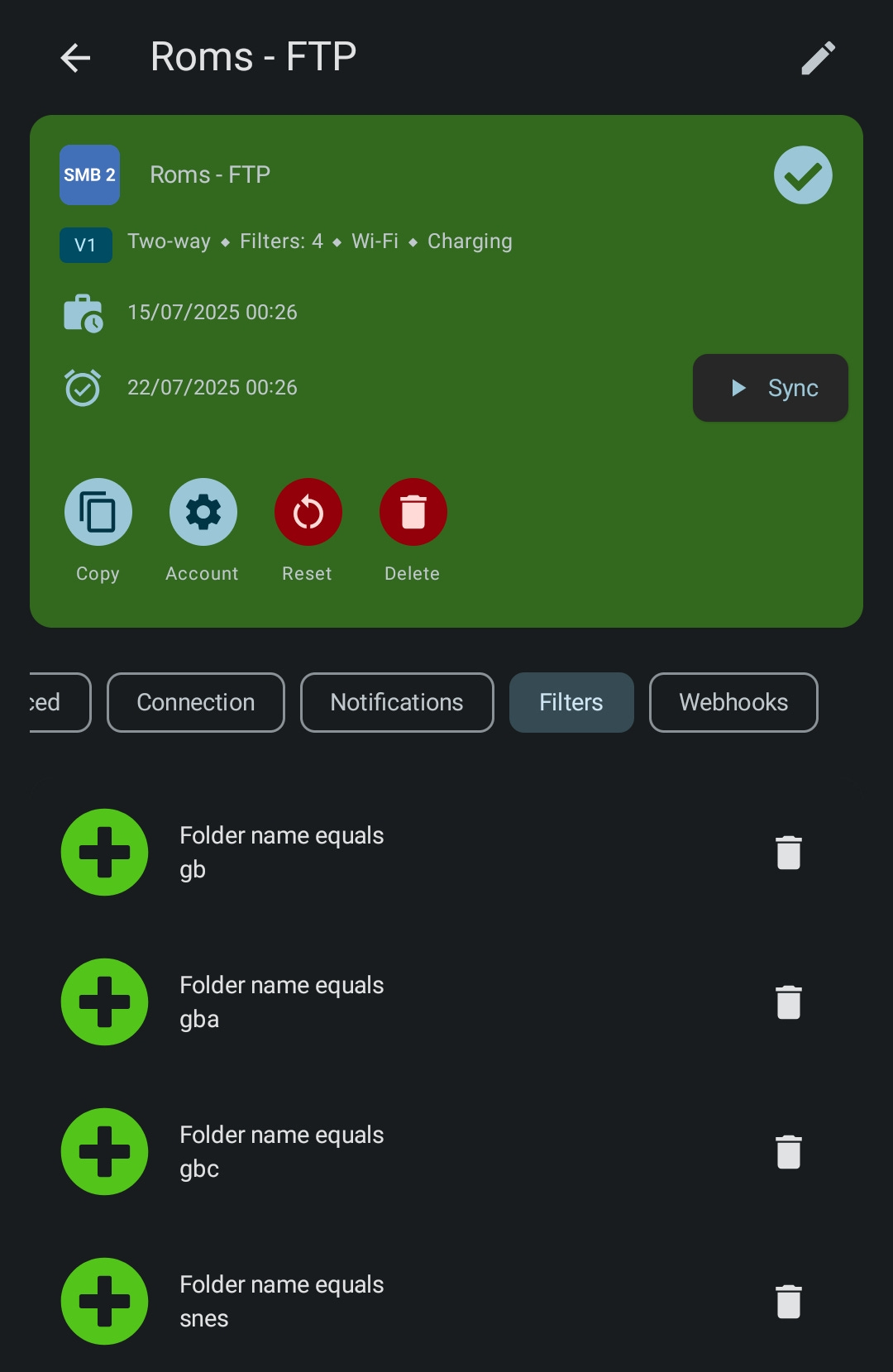
FolderSync syncs my save and savestates folders between my NAS and phone whenever my phone connects to the home WiFi. This is fantastic - it means that I can play on the go, it syncs in the background when I get home and is available for my RetroPie console to pick up to play on the TV. Speaking of...
RSync for RetroPie
I wrote a an rsync script for RetroPie and added an option to the EmulationStation menu that triggers the script. So, any time I start or stop playing, I simply trigger the menu item and it syncs across. Since I'm playing Master System games on the Pi but not Wii games, the script excludes certain subfolders from the ROM, save and savestate directories but does sync the rest.
Manual Syncing
USB-C SD card reader
My 3DS is my favourite console. Softmodded with custom firmware, it is a dream for playing any Nintendo handheld game. However, it's not exactly smart, at least not in terms of networking or automation. For large files transfers or regular data backups, I remove the SD Card and use a USB-C SD Card reader with my phone or PC. For smaller changes, I use the homebrew FTPD app which allows the 3DS to become an FTP server, giving me remote access to its SD card from either Solid Explorer on Android or Filezilla on Windows.
Unplugging a hard drive
I have a portable USB hard drive (actually a Crucial 500GB SATA SSD in an enclosure) plugged into the back of my Wii hosting Gamecube and Wii games. To add new games, I have to unplug it from the Wii, connect it to my PC, then use two specific apps (Wii Backup Manager and GameCube Backup Manager) to move games into the correct folder structure and format, then plug it back into the Wii. It works, and I do this so rarely I won't invest time in automating it but... eww.
Data structure
How my files are structured is important. Since not every device is going to play every game, I had to choose a way of organising my central repository so I know what to sync later. Since was already using RetroArch's structure on my phone and RetroPie, I configured it to split the save and savestate folders into their own directories and away from the roms themselves - less to sync at once that way.
I have a centralised folder with this folder structure:
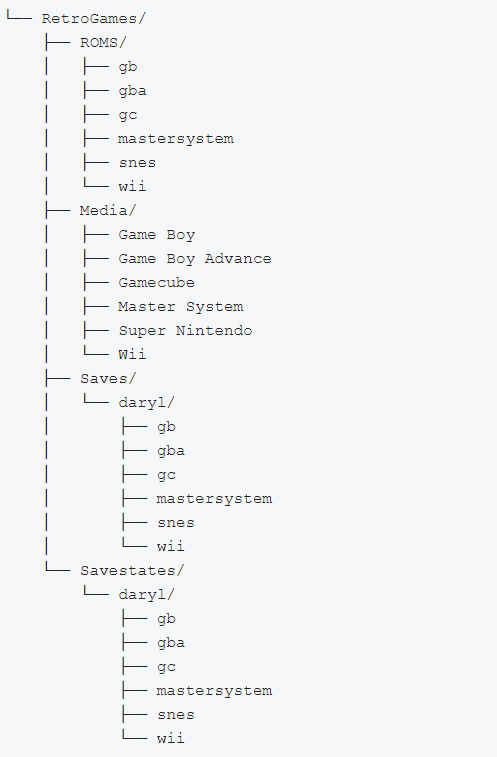
A few things to note. The "daryl" subfolder for saves and savestates is to support my User Profiles on my RetroPie, since that's a family console and everyone has their own saves. Then for some reason the Media folder uses the full console name instead of an abbreviation unlike the other folders. Doesn't matter too much.
Conclusion, and what’s next
It took a long time to get this system up and running—and a lot of trial and error—but I can now game safely in the knowledge that, for the most part, my games and saves are backed up and available across my devices.
So, what’s next? The 3DS and the Wii.
To me, both consoles represent the pinnacle of Nintendo's design philosophy. Each introduced unique ways to play. Sure, the 3D effect on the 3DS was little more than a gimmick—but it actually worked, and the handheld remains highly moddable even today. The Wii’s motion controls literally changed gaming, and their legacy can still be seen in VR, the Switch 2, and modern PlayStation consoles.
But I’m still not able to back them up properly.
My other devices follow a clear, manageable folder structure that's easy to sync. Not so with the 3DS and Wii. Their save data and games are buried in a maze of cryptically named folders, making it a nightmare to organise. Sure, I could manually identify and match every save folder to its corresponding title on the NAS—but that’s not scalable and would take more time than I’m willing to spend.
So my next step is diving into research mode to see what, if anything, is reasonably possible. If you’ve done anything similar, I’d love to hear about it!